
This post may contain affiliate links. If you buy through one, we may earn a commission at no extra cost to you. See our Affiliate Disclosure for details.
The first contractor starts Monday. The task is small: pull last week's orders from the shop admin, paste them into the fulfilment sheet, and flag anything shipping outside the country. It takes eleven minutes. It has taken eleven minutes every Monday for three years, and not one of those minutes has ever been written down.
So the weekend gets spent writing it down. Two hours in, the document has fourteen numbered steps, six screenshots that are already slightly wrong because the admin panel moved a button, and a growing suspicion that step nine assumes something only the person writing it would know.
That suspicion is the actual problem an AI SOP generator solves. Not the typing. The forgetting of what you know.
An AI SOP generator watches you do a task once, usually through a browser extension, and writes the step-by-step guide itself: a screenshot per click, a sentence describing each action, and a title, all produced while you work at normal speed. The output is a first draft, not a finished procedure. It captures every click faithfully, including the wrong ones, and it captures nothing you did in your head. For a solo owner handing off a single task, the working pattern is: record the task once, cut the detours, add the two or three judgment calls the recorder couldn’t see, and blur anything on screen a contractor shouldn’t have. Formats differ (step guides, narrated video, live overlays), and the right one depends on who’s receiving it, not on the tool.
The task is small. The handoff isn't.
Every solo business runs on procedures that exist only as muscle memory. They were never documented because there was never anyone to document them for, and writing a process down for yourself feels like a waste of an afternoon.
The moment that changes is the first handoff. A contractor, a virtual assistant, a family member covering a week of leave. Suddenly a task that costs eleven minutes to do costs two hours to explain, and the explanation is still worse than the doing, because the person writing it can't see their own assumptions.
That's the specific gap this category of software fills. It doesn't make you a better writer of procedures. It removes the writing step and replaces it with a recording step, which is a task you already know how to do: the task itself.
Click-by-click capture, and what the extension actually writes
The mainstream tools in this space (Scribe and Tango are the two most often compared, with Guidde taking the same idea into video) share one mechanism. You install a browser extension, press record, do the task, press stop.
While you work, the extension logs each click, keystroke field, and page change. For each one it takes a screenshot, crops or highlights the element you touched, and generates a sentence: "Click 'Export orders'," "Type the date range in the 'From' field," "Navigate to Fulfilment." When you stop, the guide exists. Title, steps, screenshots, in order. Most of the vendors describe the result as ready to share in seconds, and for the mechanical parts of a task, that's roughly true.
What you get back is a document that is complete in one specific sense: it contains every action you took. It's also incomplete in a sense that takes a minute to notice. It contains only the actions you took.
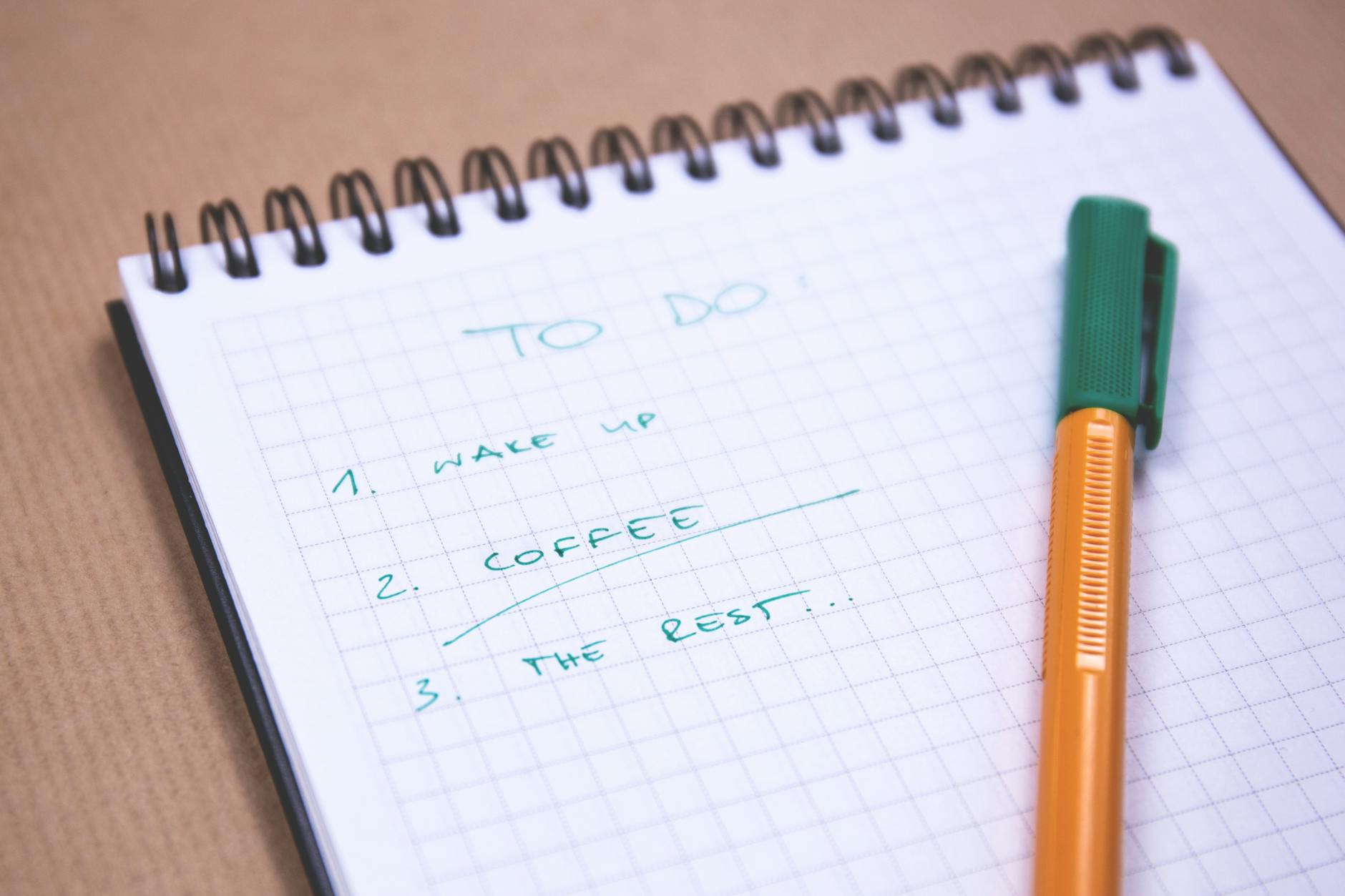
The recorder writes down every step you clicked. The steps you decided in your head are still on you. Photo by freestocks.org via Pexels.
Where the auto-generated guide lies to you
The draft is honest about clicks and silent about everything else. Four gaps show up in almost every raw recording, and they're worth fixing in this order.
The detour that got recorded as a step. You opened the wrong tab, backed out, and opened the right one. The guide now has steps 4, 5, and 6 where step 4 is enough. A contractor following it literally will open the wrong tab too, because the document told them to. Deleting these takes a minute per guide and is the single highest-value edit you'll make.
The decision the recorder couldn't see. Step nine in the fulfilment example is "flag anything shipping outside the country." The recording shows you clicking a checkbox on two rows. It does not show you scanning twenty rows and deciding those two were the international ones, or that a row with a military address counts as domestic, or what to do when the country field is blank. That's the knowledge the whole handoff depends on, and no screen capture holds it. It has to be typed in, usually as a note under the step.
The precondition. You were already logged in. You already had the right date filter saved. The recording starts at the state your browser was in, which is not the state a new person's browser will be in. A one-line "Before you start" block fixes it.
The exception you handle without thinking. The export sometimes returns an empty file when the shop's report cache hasn't refreshed. You know to wait and retry. The guide doesn't, because on the day you recorded it, the export worked. This is the same species of problem as an automation that fails without telling anyone: the happy path is documented, the unhappy path is folklore.
None of these are defects in the tools. They're the reason the vendors call the output a draft or a starting point rather than a finished procedure, and it's the reason the honest time estimate for a handoff-ready SOP is "one recording plus fifteen minutes of editing," not "one recording."
Screenshots remember everything you had on screen
A step-by-step guide built from screenshots is, by construction, a set of photographs of your admin panels. Whatever was visible when you clicked is now in the document: customer names and addresses in the order table, the revenue figure in the sidebar, an API key in a settings tab you passed through, the unread email preview in the corner.
Before anything is shared, that has to be dealt with, and it's a place where the free and paid tiers of these tools tend to differ. The vendors generally offer some way to blur or redact regions of a screenshot, and some describe automatic detection of sensitive fields, but which of those sits on which plan moves around. Scribe's pricing page is the place to check for that product specifically, and the equivalent page on each vendor's site for the others.
Two habits sidestep most of it regardless of tool. Record in a browser profile with no personal accounts signed in and no unrelated tabs open. And record against test data where the task allows it, such as a sandbox order rather than a live customer, so there's nothing to blur in the first place. The second habit also produces a cleaner guide, because a test record is boring and a real one invites the eye to wander.
The document-handling side connects to something covered in how AI document organization actually works in a solo business: where these guides live after they're made decides whether they get updated or quietly rot. A guide in a shared folder with a last-edited date is a procedure. A guide in a tool's own library that nobody opens again is a screenshot archive.
Video, steps, or a live overlay: matching the format to the person
The category has fanned out into three output formats, and the choice matters more than the choice of vendor.
| Format | What the receiver gets | Fits best when |
|---|---|---|
| Step guide (screenshot + sentence per click) | A page they can scan, search, and keep open beside the task | The task is linear and repeated on a schedule; the receiver is at a desk |
| Narrated video | A short screen recording with a voice explaining as it goes | The task has judgment in it that's easier to say than to list; the receiver is new to the app |
| Live overlay ("do it with me") | Highlighted prompts inside the actual app, step by step, as they perform the task | The receiver will do the task once or rarely and shouldn't have to read anything first |
Step guides are the default and the right default for a recurring task. Narrated video is where Guidde and Loom sit: Loom records screen and camera, and its AI features draft a title, summary, and chapters from the recording so the video is navigable without scrubbing; Guidde generates the narration itself from the captured steps. The overlay format is what Tango calls guidance, where the instructions appear on top of the live application rather than in a separate document.
A useful way to pick: ask what the receiver will have open. If the answer is "the guide and the app side by side," a step guide. If it's "just the app, and they'll get lost," an overlay. If it's "they need to understand why before they'll do it right," a video, and it should be short, because a nine-minute walkthrough of an eleven-minute task is a sign the task wasn't ready to hand off.
On price: this post prints none. As of September 21, 2026, each of the four vendors above publishes a free tier on its site, and what those tiers gate (desktop capture versus browser-only, export formats, redaction, number of guides or videos, watermarking) is exactly the kind of detail that changes between the writing and the reading of a post. Check the vendor's pricing page on the day, and check specifically for the capture mode you need, since a browser-only free tier is useless for a task that lives in a desktop application.
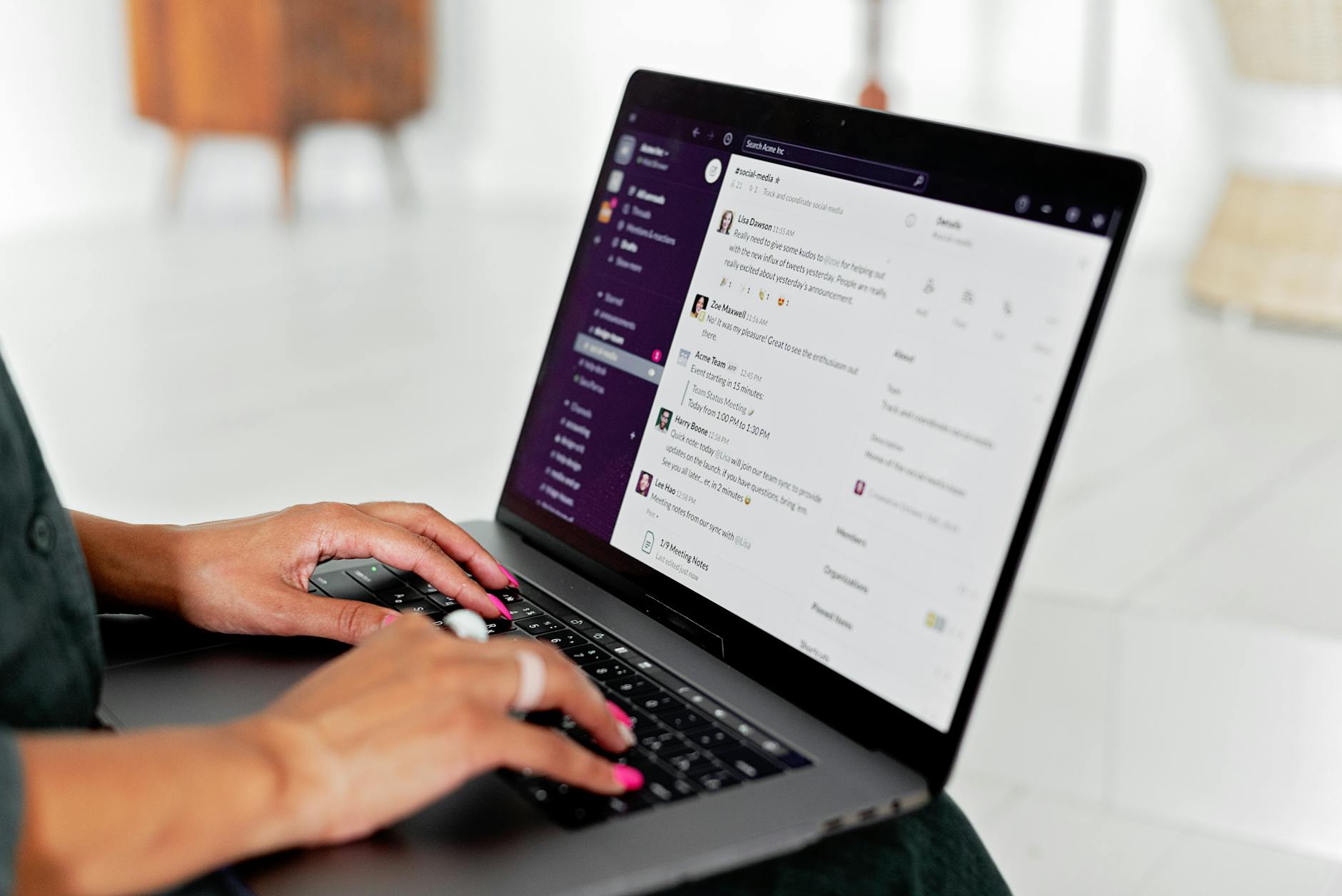
Ask what the receiver will have open on their screen. That answers the format question before any vendor comparison does. Photo via Pexels.
The SOP that's also a spec
There's a second use for these recordings that has nothing to do with contractors.
A step guide of a task is also the clearest possible description of that task for automating it. Fourteen steps with screenshots is what a no-code automation platform needs from you anyway, and it's what you'd write on paper before deciding whether the task should be automated at all. A task that records as six clicks in one app is a candidate for a rule. A task that records as thirty clicks across four apps with three decisions in the middle is a candidate for a person, at least for now.
Solo owners who have already been through the exercise of turning voice notes into a working task list will recognise the shape. The tool handles the capture. The judgment about what to do with the captured thing stays yours, and the recording makes that judgment easier because for once the whole task is visible on one page.
Record the task you'd be embarrassed to explain twice
One task, this week.
Pick the recurring job you'd least want to explain to someone out loud, the one where the explanation would start with "okay, so, it's a bit weird." Open a clean browser profile, install any one of the extensions above on its free tier, press record, and do the task exactly as you normally do, including the parts that feel stupid. Stop. Then, before showing it to anyone, do three edits: delete the detour steps, write one sentence under every step where you made a decision the screen didn't show, and add a "Before you start" line at the top listing what needs to be true first.
Read it back as if you were the contractor. If you'd get stuck, you've found the step that needed the note. If you wouldn't, you now have a procedure that took twenty minutes instead of a weekend, and a fair test of whether this category of tool earns a place in how you run the business.

저는 한국에서 직원 없이 혼자서 두 개의 소규모 사업체를 운영하고 있습니다. 견적, 회계, 마케팅, 웹사이트 관리까지 모두 제가 직접 하고 있습니다. 개발자는 아니지만, 이 사이트의 자동화 시스템은 AI 코딩 도우미를 활용하여 밤늦게까지 오랜 시간 공들여 구축했고, 모든 콘텐츠 관리 및 게시도 제가 직접 담당하고 있습니다.